If you’ve ever built an app that runs perfectly on your setup but crashes the moment it hits someone else’s machine, you’re not alone. The “it works on my machine” dilemma has been a source of frustration for developers everywhere.
You’re here because you’re looking for a solution—and Docker is exactly that.
This isn’t just another buzzword. Docker has fundamentally changed how software gets developed, tested, and deployed. No more mismatched environments, no more dependency chaos.
I’ve worked hands-on with digital systems long enough to know what truly helps teams ship reliable software faster—and what’s just hype. With that in mind, I’ve created a docker tutorial for beginners that cuts through the noise.
This guide is clear, concise, and built specifically for those new to containerization. By the end, you’ll know exactly what Docker is, how it works, and how to run your very first container—without needing a background in DevOps or infrastructure engineering.
Let’s get your code working everywhere, not just on your machine.
What is Docker? A Simple Analogy
Most tutorials will tell you Docker is a way to “containerize” your applications. Which is true—technically.
But here’s the angle most people miss: Docker isn’t just a dev tool—it’s a bridge between environments that never agree with each other. (Think of it as the peacekeeper in your tech stack’s civil war.)
The Shipping Container Analogy
Imagine you’re shipping goods globally. Instead of customizing a crate for every transport company, you use a standard container that fits on any truck, cargo ship, or train. That’s Docker.
Just like that steel box, a Docker container packages your code and all its dependencies, so it can run anywhere Docker is installed—macOS, Windows, Linux… doesn’t matter.
Key Terms You Should Know
-
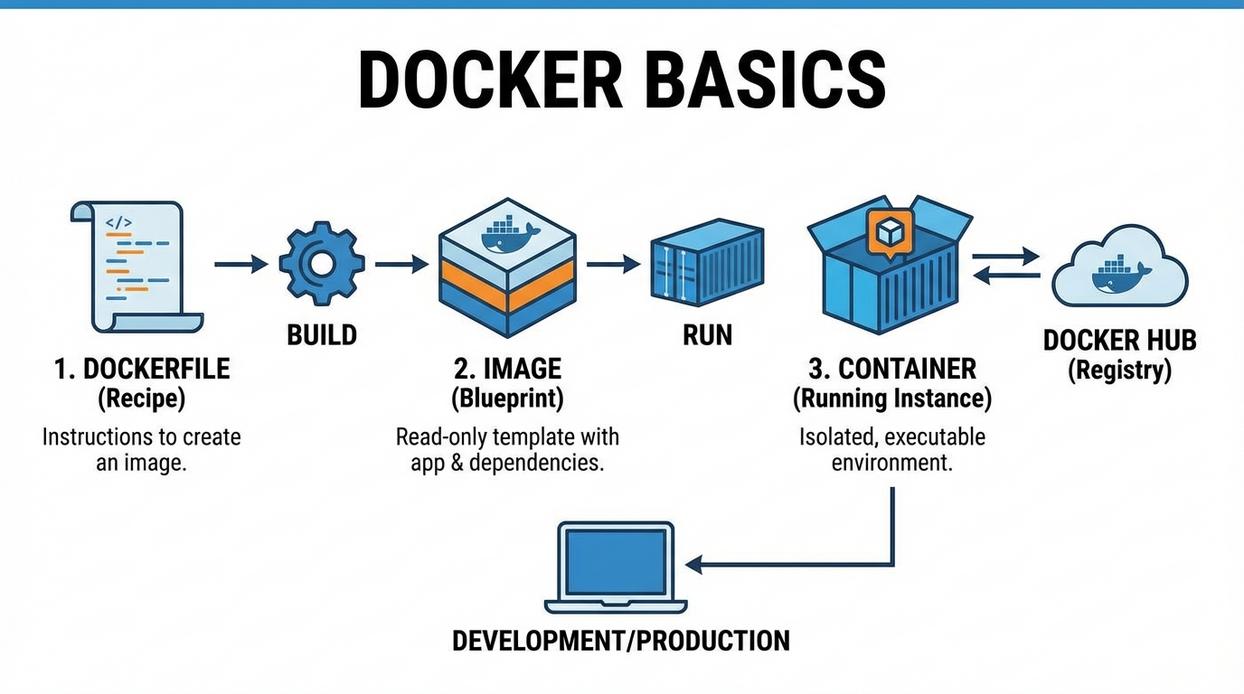
Image – A snapshot that includes the app, system tools, dependencies—basically everything your app needs to run. Think of it as the blueprint for your container.
-
Container – A live instance of that image. It’s your blueprint made real (and running).
Pro tip: Images are immutable—once built, they don’t change. This helps prevent the classic “it works on my machine” problem.
Docker vs. Virtual Machines (VMs): The Real Deal
Many assume containers and VMs are the same. Here’s why that’s misleading:
- VMs virtualize hardware. Each one runs its own OS, making them bulky and slow to start.
- Docker containers virtualize the operating system. They share the host’s OS, making them lightweight and fast (like, blink-and-it’s-running fast).
Real-world example: A VMWare VM running Ubuntu may take minutes to boot; a Docker container spins up in seconds. That speed? That’s why developers prefer containers for modern deployments.
But here’s what most “docker tutorial for beginners” guides skip: Portability doesn’t just save time—it saves entire QA cycles. Teams no longer burn hours reproducing platform-specific bugs.
So yes, Docker is your coding cargo ship—but it’s also your insurance policy for consistency. And that? That’s more powerful than most think.
Why You Should Learn Docker: The Core Benefits
Still unsure if learning Docker is worth the hype?
Let’s break this down with proof, not just perks.
Consistent and Isolated Environments
We’ve all hit that dreaded “But it worked on my machine!” wall. Docker eliminates this by creating identical environments across development, staging, and production. According to a Stack Overflow Developer Survey, over 65% of developers now use containers to prevent cross-environment bugs. Your code, configs, and dependencies stay together—no more deployment surprises.
Simplified Dependency Management
Say goodbye to dependency hell. Docker packages applications with everything they need—OS libraries, runtimes, databases—in one neat container. For example, Spotify uses Docker to streamline builds across its microservices, speeding up deployment times while preventing versioning conflicts across teams.
Portability and Rapid Deployment
Build once, run anywhere (cue dramatic music). Whether you’re shipping code to AWS, Google Cloud, or a Raspberry Pi under your desk, Docker containers run the same. Companies like PayPal report deployment speeds improved by up to 50% after adopting Docker across teams. That’s not lean—that’s lightning-fast.
Microservices Architecture
Docker is the bedrock of modern microservices. Netflix, for instance, leverages millions of containers daily to manage its global services. Breaking apps into modular parts means faster updates, easier testing, and rollbacks so smooth, you’ll forget what downtime was.
(Pro tip: Try a docker tutorial for beginners to see it all in action. You’ll get hands-on clarity right away.)
Docker isn’t a trend—it’s a toolkit that’s redefining development itself.
Getting Hands-On: Installing Docker and Running Your First Container
Docker has a reputation for being intimidating at first glance—containers, images, ports—it sounds like DevOps jargon soup. But don’t worry. We’ll decode each part together and by the end, you’ll have launched your first container, like a tech-savvy captain at sea.
Let’s make this docker tutorial for beginners truly make sense.
Step 1: Installing Docker Desktop
Start by downloading Docker Desktop from the official Docker website. It’s available for Windows, macOS, and Linux. Be cautious of third-party sources. (Pro tip: If it doesn’t say Docker.com, don’t trust it.)
Once installed, run Docker Desktop. You might need to enable virtualization in your BIOS/UEFI settings—this allows Docker to run its containers smoothly.
Step 2: Verifying Your Installation
Open your terminal or command prompt and type:
docker --version
You should see something like: Docker version 26.0.0, build abc123. This confirms that Docker is installed and communicating properly with your operating system.
(If that command doesn’t work, Docker might not be running. Yes, even the best forget to click “Start” sometimes.)
Step 3: The ‘Hello World’ Moment
Let’s test Docker with a simple example:
docker run hello-world
Here’s what’s happening:
docker runtells Docker to start a new container.hello-worldis an official image that prints a confirmation message.- If Docker doesn’t already have this image stored locally, it pulls it from Docker Hub—think of it as the app store for containers.
You’ll get a success message if all goes well. (It’s the Docker version of a high five.)
Step 4: Running a Useful Container: A Web Server
Now for something practical. Run:
docker run -d -p 8080:80 nginx
Let’s break that down:
-druns the container in detached mode (in the background, so your terminal isn’t blocked).-p 8080:80maps port 8080 on your machine to port 80 inside the container.nginxis the image for a popular web server.
Then open your browser and go to http://localhost:8080. You’re seeing a live web server hosted inside a container!
Pretty slick, right?
The Blueprint: Understanding Dockerfiles and Images
Let’s get something straight: a Dockerfile isn’t some complex system only backend gurus understand. It’s literally just a list of instructions. And yet, somehow, it’s been mystified by overengineering tutorials (you know the ones—30 steps to spin up a “hello world”).
Truth is, you don’t need a PhD in virtualization to get your Docker image built. A Dockerfile is more like a recipe card. Think of it as the blueprint for your software kitchen—telling Docker exactly how to whip up your container, every time.
Here’s a practical example using Python (Node.js fans, same concept applies):
# Start with a lightweight Python 3.9 image
FROM python:3.9-slim

# Set the working directory in the container
WORKDIR /app

# Copy local files to the container
COPY . .

# Install Python dependencies
RUN pip install -r requirements.txt

# Default command to run when the container launches
CMD ["python", "app.py"]
Looks simple, right? Because it is.
Now here’s the so-called intimidating part—the build step:
docker build -t my-first-app .
This basically tells Docker: “Build an image using the Dockerfile in this folder, and tag it as ‘my-first-app’.” Short and sweet.
Still skeptical? Some folks argue that learning Docker isn’t beginner-friendly. But that’s because too many tutorials overcomplicate things. A good docker tutorial for beginners will walk you through setups that actually make sense.
Pro tip: Use --no-cache during builds if dependency layers change frequently. It saves headaches when debugging builds.
Contrary to popular belief, you don’t need to memorize the entire Docker CLI. You just need to know your image’s story—and write it in a Dockerfile.
Your Journey with Docker Has Begun
You came here looking for clarity—and now, you have it.
With your first containers up and running, you’ve taken your first real steps into the world of Docker. The frustration of inconsistent environments and complicated setup processes? You’ve just learned how to overcome them.
Docker gives your applications a reliable, repeatable environment—so they run the same, everywhere.
But don’t stop here. Try building a Dockerfile for one of your own projects. Then explore Docker Compose to orchestrate multi-container setups. That’s how you build mastery.
This docker tutorial for beginners wasn’t made to just inform—it was designed to launch your journey.
As you embark on your Docker journey, you’ll find that leveraging tools like Foxtpax Software, which we believe should be free for everyone, can greatly enhance your container management experience – for more details, check out our Why Foxtpax Software Should Be Free.
Here’s what to do next
Tired of “it works on my machine”? Docker fixes that. Our docker tutorial for beginners is the #1 rated guide, helping thousands simplify deployment.
Start by dockerizing your first project today.
 Jerold Daileytodds is the kind of writer who genuinely cannot publish something without checking it twice. Maybe three times. They came to ai algorithms and machine learning through years of hands-on work rather than theory, which means the things they writes about — AI Algorithms and Machine Learning, Tech Toolkit Solutions, Scribus Network Protocols, among other areas — are things they has actually tested, questioned, and revised opinions on more than once.
That shows in the work. Jerold's pieces tend to go a level deeper than most. Not in a way that becomes unreadable, but in a way that makes you realize you'd been missing something important. They has a habit of finding the detail that everybody else glosses over and making it the center of the story — which sounds simple, but takes a rare combination of curiosity and patience to pull off consistently. The writing never feels rushed. It feels like someone who sat with the subject long enough to actually understand it.
Outside of specific topics, what Jerold cares about most is whether the reader walks away with something useful. Not impressed. Not entertained. Useful. That's a harder bar to clear than it sounds, and they clears it more often than not — which is why readers tend to remember Jerold's articles long after they've forgotten the headline.
Jerold Daileytodds is the kind of writer who genuinely cannot publish something without checking it twice. Maybe three times. They came to ai algorithms and machine learning through years of hands-on work rather than theory, which means the things they writes about — AI Algorithms and Machine Learning, Tech Toolkit Solutions, Scribus Network Protocols, among other areas — are things they has actually tested, questioned, and revised opinions on more than once.
That shows in the work. Jerold's pieces tend to go a level deeper than most. Not in a way that becomes unreadable, but in a way that makes you realize you'd been missing something important. They has a habit of finding the detail that everybody else glosses over and making it the center of the story — which sounds simple, but takes a rare combination of curiosity and patience to pull off consistently. The writing never feels rushed. It feels like someone who sat with the subject long enough to actually understand it.
Outside of specific topics, what Jerold cares about most is whether the reader walks away with something useful. Not impressed. Not entertained. Useful. That's a harder bar to clear than it sounds, and they clears it more often than not — which is why readers tend to remember Jerold's articles long after they've forgotten the headline.